RDP remote desktop
Copyright © Quectel Wireless Solutions Co., Ltd. 2026. All rights reserved.
RDP (Remote Desktop Protocol) is a graphical remote desktop connection method. A Windows host can use the built-in “Remote Desktop Connection” tool to access the Quectel Pi M2 Debian desktop and view or control the graphical interface remotely.
Quectel Pi M2 primarily uses the GNOME desktop environment, which can provide RDP remote desktop functionality via GNOME Remote Desktop, without the need to install additional software such as VNC, Xvfb, or x11vnc.
💡 Note: When M2 uses the GNOME user desktop sharing method to connect via RDP, the graphical desktop session must remain in a logged-in state.
Preparation
Confirm the device environment:
Quectel Pi M2 has booted into the Debian system;
The Windows host and the development board are on the same network segment or within the same reachable local area network;
The Windows host has the “Remote Desktop Connection” tool installed or enabled.
It is recommended to enter the development board via the serial console. For detailed instructions on serial connection, please refer to debug_uart.md. For the M2 default login user, please follow the guide to use the account and password you created. If a local debugging environment is already available, you can also enter the system via ADB.
Obtain the device IP address. Execute on the development board:
hostname -I
Record the IP address on the current network, which will be needed later for the Windows Remote Desktop Connection.
💡 Note: The Windows host and the development board need to be on the same network segment or within the same local area network, and the networks on both ends must be able to reach each other. Otherwise, even if the RDP service has been started on the board side, the connection will not work.
GNOME Remote Desktop
Software Installation
The Quectel Pi M2 Debian system already has gnome-remote-desktop integrated, which can directly use GNOME Remote Desktop to provide RDP remote desktop functionality. You can execute the following command in the terminal to confirm whether the package is installed:
dpkg -l | grep gnome-remote-desktop
If the package is not installed in the system, you can execute the following command to install it:
sudo apt update
sudo apt install -y gnome-remote-desktop
You can also execute the following command to confirm whether the remote desktop management tool exists:
which grdctl
If the command returns /usr/bin/grdctl, it means the system already includes the GNOME remote desktop management tool.
Software Configuration
Graphical Interface Configuration Through the Quectel Pi M2 graphical interface, navigate to: Settings > System > Remote Desktop.In the remote desktop settings interface, you can toggle the following switches according to actual usage needs:
Desktop Sharing: Allows other devices to view the current desktop via the RDP protocol.
Remote Control: Allows the remote connecting end to control the mouse and keyboard.
Command-Line Configuration To configure RDP via the command line, execute the following commands in the user environment where the graphical desktop is logged in. The following example sets the RDP username and password to
q; please modify as needed in actual use:
mkdir -p ~/.local/share/gnome-remote-desktop
openssl req -x509 -newkey rsa:2048 -nodes \
-keyout ~/.local/share/gnome-remote-desktop/rdp-tls.key \
-out ~/.local/share/gnome-remote-desktop/rdp-tls.crt \
-days 3650 -subj /CN=Quectel-Pi-M2
chmod 600 ~/.local/share/gnome-remote-desktop/rdp-tls.key

grdctl rdp set-tls-cert ~/.local/share/gnome-remote-desktop/rdp-tls.crt
grdctl rdp set-tls-key ~/.local/share/gnome-remote-desktop/rdp-tls.key
grdctl rdp set-credentials q q
grdctl rdp disable-view-only
grdctl rdp enable
systemctl --user restart gnome-remote-desktop.service
Software Startup
After turning on Desktop Sharing in the graphical interface, the GNOME remote desktop service will be enabled automatically.
You can also use the following command in the terminal to view the current status:
grdctl status --show-credentials
Under normal circumstances, you can see RDP-related status, port, username, and remote control mode information.
You can also check the user service and port listening status:
systemctl --user status gnome-remote-desktop.service --no-pager -l
ss -tulnp | grep -E ':3389|:3390'
💡 Note: If the system-level GNOME Remote Desktop has already occupied port
3389, the desktop sharing service of the currently logged-in user may negotiate to another port, such as3390. Please refer to the actual output ofgrdctl status --show-credentialsandss -tulnp.
If you need to enable the RDP backend via the command line, you can execute:
grdctl rdp enable
If you need to allow the remote end to control the mouse and keyboard, you can execute:
grdctl rdp disable-view-only
If you only want to allow the remote end to view the desktop without controlling the mouse and keyboard, you can execute:
grdctl rdp enable-view-only
💡 Note: In actual use, it is recommended to prioritize configuration through the graphical interface to avoid inconsistency between command-line configuration and the displayed interface status.
Remote Desktop Connection
Open “Remote Desktop Connection” on the Windows host.
In the “Computer” input box, enter the IP address of the development board, for example
<development-board-IP>. If you need to manually specify a port, you can enter<development-board-IP>:3389. Ifgrdctl status --show-credentialsorss -tulnpshows that the RDP is actually listening on a different port, such as3390, then enter<development-board-IP>:3390.
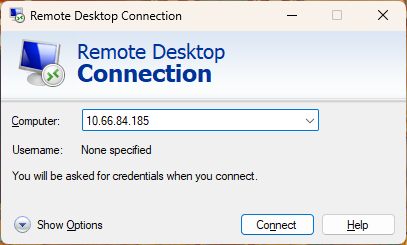
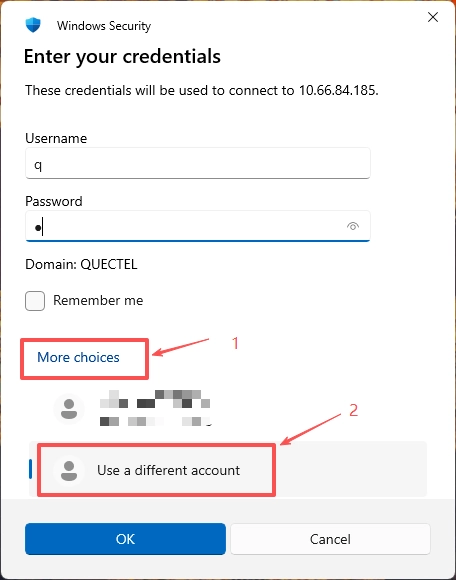
Click “Connect”, and enter the username and password shown in the remote desktop settings interface as prompted. If Windows Security Center prompts for credentials, you can click More choices, select Use a different account, and then enter the username and password configured in the remote desktop settings interface.
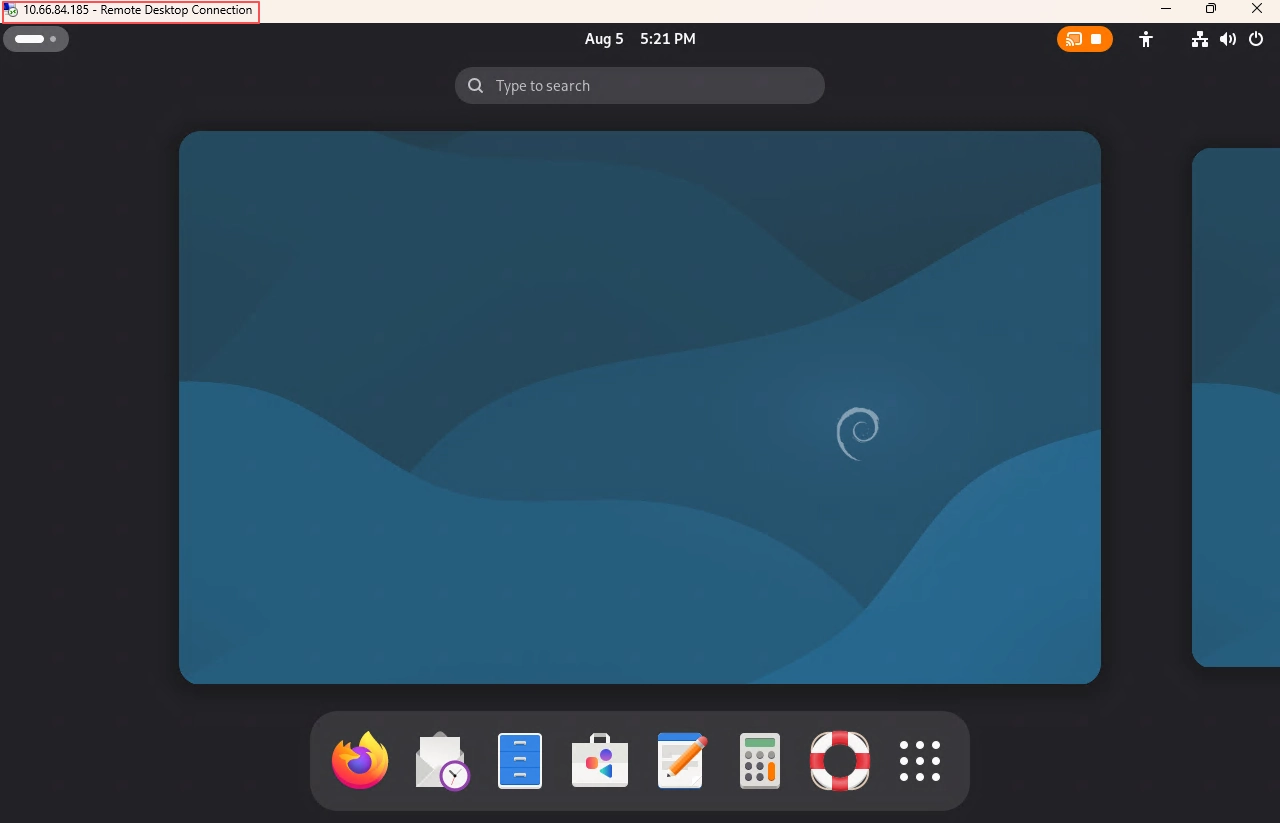
After a successful connection, you can view and operate the Debian desktop on the Windows host.
Troubleshooting
Issue |
Possible Cause |
Resolution |
|---|---|---|
Windows Remote Desktop cannot connect |
Windows host and device are not on the same local network |
Confirm network connections on both ends, and re-obtain the device’s IP address |
Windows Remote Desktop cannot connect |
Incorrect IP address or port |
Run |
Windows Remote Desktop cannot connect |
Desktop Sharing is not enabled |
Go to |
Windows Remote Desktop cannot connect |
GNOME Remote Desktop is not installed or not started |
Run |
Can only view the desktop, cannot control the mouse and keyboard |
Remote Control is not enabled, or it is currently in read-only mode |
Turn on Remote Control, or run |
Login prompts that the username or password is incorrect |
The entered credentials do not match what is shown in the remote desktop settings |
Use the username and password shown in the remote desktop settings interface; regenerate or manually modify the password if necessary |
Connection disconnects shortly after, and returns to the development board login screen |
The current graphical desktop user session has exited, and the GNOME Remote Desktop user service stopped with the session |
Re-log in to the graphical desktop on the development board locally, then confirm that |
Screen is abnormal or does not refresh after connection |
The graphical desktop session state is abnormal |
Confirm that the device has logged in to the graphical desktop, disconnect and reconnect |
Cannot connect after network switch |
The device IP address has changed |
Re-run |